Introduction
is ideal for tasks where volume and speed are paramount, and the specific order or characteristics of the barcodes are less important. Save time and energy of your workforce by enabling them to scan multiple barcodes simply by holding the trigger and capturing a predefined number of barcodes until the trigger is released.
Setup
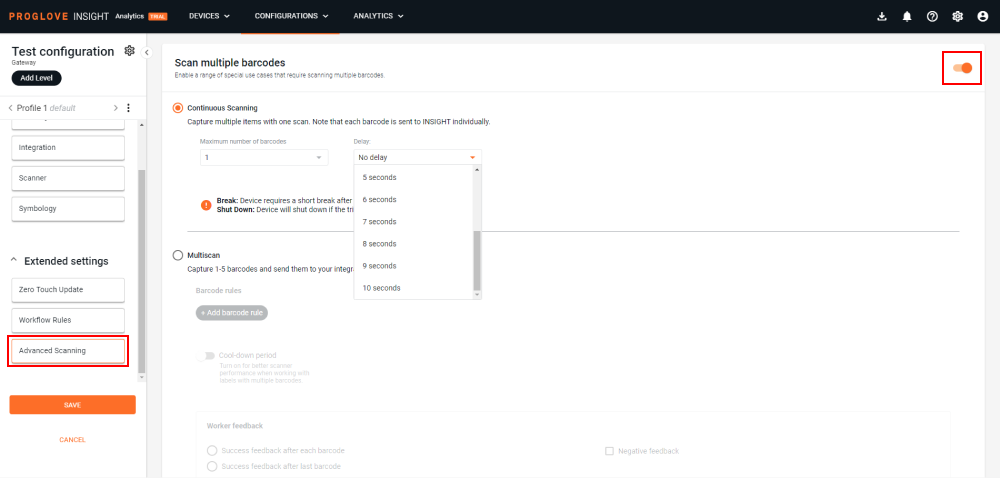
To set up , create a new or edit an existing device configuration, open the tab and click the toggle in the top-right corner to enable it.
will be selected by default, with a maximum of 1 barcodes to scan and without delay in transmission. By clicking the drop down menus, you can select up to 10 barcodes and add a delay of up to 10 seconds between sending each captured barcode.
Note
Delay time between transmitting each of the captured barcodes can be necessary when system is slow to receive and/or process incoming successive barcodes.
Scanners require short breaks after long scans and will automatically shut down if the trigger is held longer than 12s.
Once all settings are defined, click SAVE in the bottom of the left navigation and your configuration will display in the Configurations list.
Additional information
Note that work best when there are multiple barcodes and filter conditions. Due to the scanners and connectivity devices needing to work in tandem to conclude a session, and the connectivity device sending the confirmation to the scanner that all required conditions are met, this end-to-end communication between scanners and connectivity devices may take slightly more time.
In environments where a greater distance between the scanner and its host device is required and the trigger is pressed for 3+ seconds, we have observed a high probability of the Bluetooth connection weakening or breaking completely. This may lead to potential operational interruptions and having to re-establish the connection by scanning the pairing barcode again.
To avoid these issues and mitigate disruptions, we recommend taking one or more of the following actions:
Minimize the duration of pressing the scanner trigger and refrain from holding it for more than 3 seconds.
Limit the distance between the scanner and its Connectivity Device to a maximum of 10 meters.
Add a delay of at least 1 second between sending each scanned barcode using the settings.
For tasks that do not require features, use the standard scanning mode.
Consider upgrading your scanners and make sure they are using the latest available firmware.
Refer to the Feature availability table below for a list of affected scanner models.
Devices | Subscription plan | Resources | Important |
|---|---|---|---|
, , - 2.14.0 , - 1.6.0 - 1.0.2 - 2.12.1 - 1.32.1 - 2.3.0 | Review the limitation described above if using any of the following scanner models:
|
FAQs
- 1. Why is a delay in transmission necessary?
- 2. Can I use both modes and switch between and ?
- 3. Why is a break required after a long scan?
1. | Why is a delay in transmission necessary? |
Sometimes the receiving system can be slower to receive the data and/or needs processing time between receiving successive barcodes. | |
2. | Can I use both modes and switch between and ? |
You can select and define only one mode for each device configuration at a time - i.e. either or mode. | |
3. | Why is a break required after a long scan? |
It is necessary for the engine to cool off and preserve its optimal functionality, so we recommend short pauses after long scans. |