FAQ
Welcome to the LANA FAQ section!
Here, you'll find answers to common questions about our innovative products designed to enhance productivity and streamline workflows in various industries. Whether you're a new user seeking guidance on setup and functionality, or a seasoned professional looking for advanced troubleshooting tips, our comprehensive FAQ section is here to support you. Explore the categories below to quickly find the information you need and make the most of your ProGlove experience.
Operating System
Touch Screen Settings (Glove Mode)
1. | Is it possible to adjust the screen sensitivity for different working environments? |
Yes. The device allows users to optimize the touch interface based on their needs. You can switch between standard and high-sensitivity modes by navigating to: | |
From here, you can toggle between Finger Mode and Glove Mode. Enabling Glove Mode ensures the device remains fully functional even when operators are wearing protective work gloves, providing consistent performance in diverse industrial settings. |
Optimizing Wi-Fi Speed and Throughput
1. | Why is the Wi-Fi speed lower than expected, and how can I maximize the throughput? |
To ensure maximum Wi-Fi performance, especially in high-density environments, you may need to adjust the advanced wireless settings. By default, the device may enable "Power Save" features to extend battery life, which can sometimes limit the maximum data throughput. | |
To achieve the highest speed, we recommend disabling the Wi-Fi Power Save mode via: | |
This adjustment allows the Wi-Fi radio to remain in a high-performance state, ensuring the fastest possible data transfers and minimal latency. |
Recovery
1. | How to enter the Android Recovery Menu via HW key? | |
1. Restart LANA 2. Press and hold the programmable key until the Android Recovery menu appears.
3. Release the programmable key. 4. You can use the programmable key to move the cursor down except the on/off button. 5. Choose Wipe data/factory reset and press the on/off button. 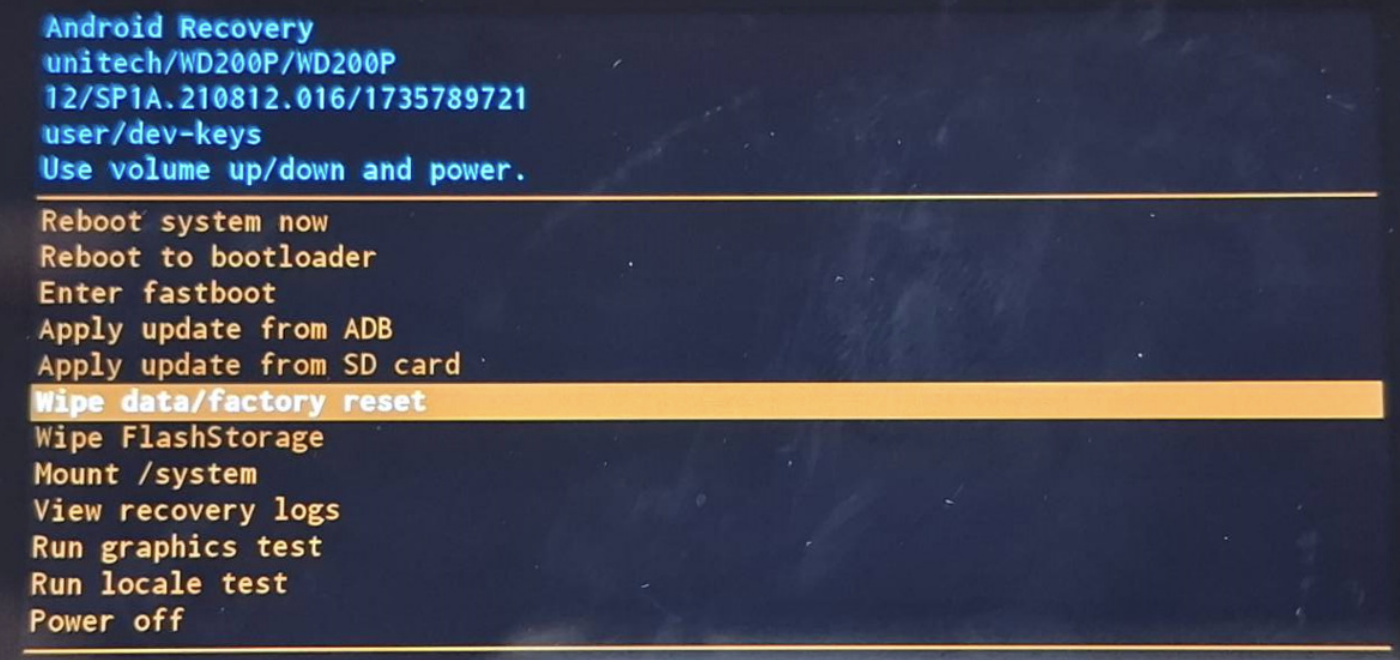 6. Choose factory data reset. 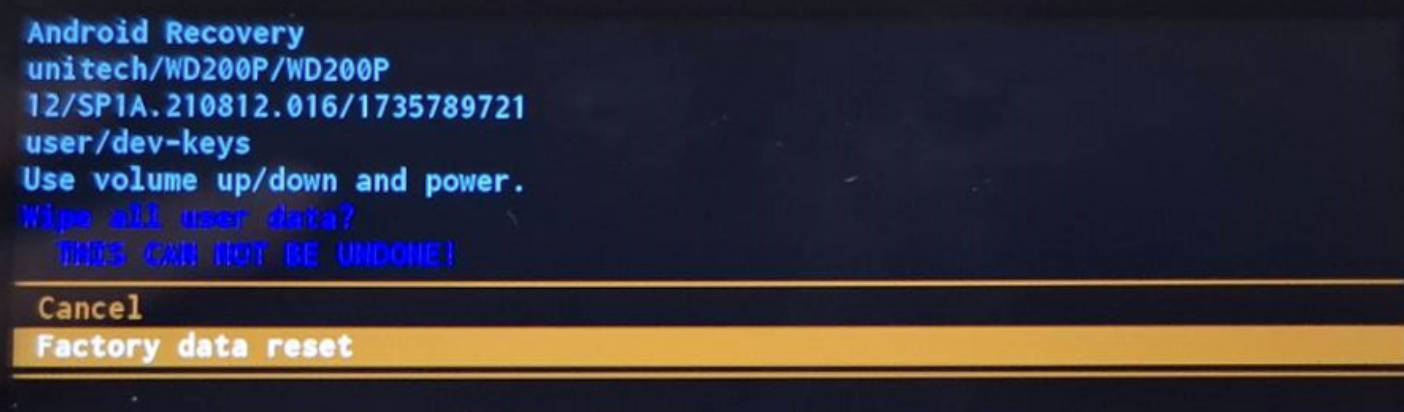 7. Choose reboot system now. 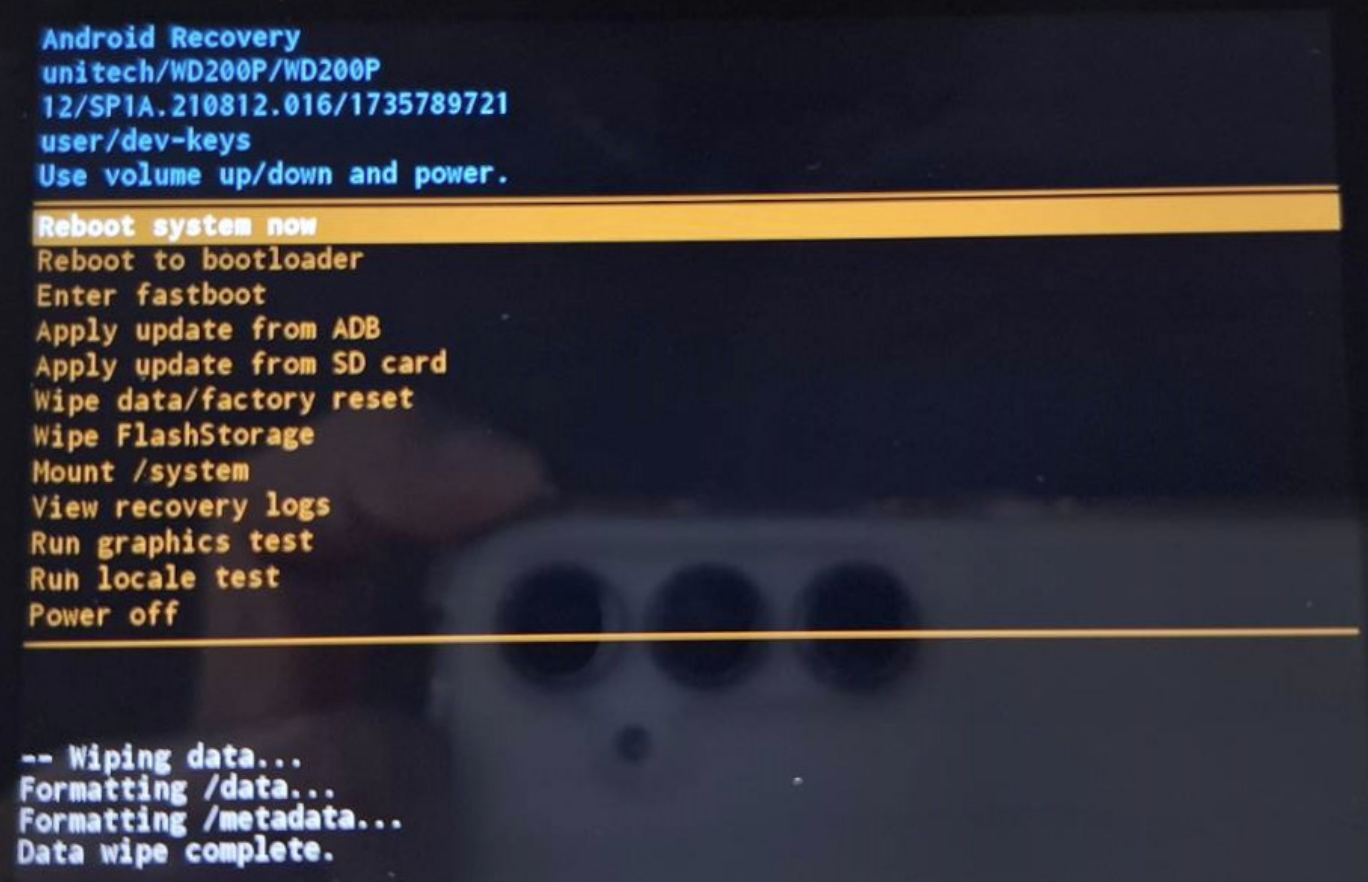 8. The Android setup wizard appears. | ||
2. | How to reset Wi-Fi, mobile & Bluetooth? | |
This will reset all network settings, including Wi-Fi/ mobile data/ Bluetooth Settings > System > Reset options > reset Wi-Fi, mobile & Bluetooth |
Hardware - Maximizing charging efficiency
- 1. How can I ensure the fastest possible charging for the wearable computer?
- 2. The device has an integrated battery. Is it suitable for use across consecutive work shifts?
- 3. What type of charger should I provide to my end-users for this device?
- 4. Does the screen indicate when "Fast Charging" is active?
1. | How can I ensure the fastest possible charging for the wearable computer? |
To achieve the best charging performance, please use a power adapter and cable that support the PD (Power Delivery) 3.0 protocol. Using a PD-certified charger can reduce total charging time by approximately 20 minutes compared to standard charging cradles. This ensures the device is fully replenished (approx. 2h 15m) during shift transitions, keeping your operations running smoothly. | |
2. | The device has an integrated battery. Is it suitable for use across consecutive work shifts? |
Absolutely. The device is engineered for high-efficiency power management, providing up to 11 hours of operation on a single charge. For 24/7 environments, we recommend a "top-up" charging strategy during employee breaks. With the supported PD Fast Charging technology, even a short charging session can provide significant runtime, making it ideal for 3-shift operations without the need for battery swapping. | |
3. | What type of charger should I provide to my end-users for this device? |
We strongly recommend providing a PD 3.0 USB-C Power Adapter. Although other fast-charging standards (like QC 3.0) may be available in the market, the PD 3.0 protocol is the optimized standard for this device's circuitry. Using the correct PD 3.0 hardware ensures maximum safety, battery longevity, and the fastest charging speeds for the end-user. | |
4. | Does the screen indicate when "Fast Charging" is active? |
The system displays the standard charging icon and battery percentage. While the OS does not explicitly label the charging mode as "Fast Charging," the actual charging speed will be automatically optimized when a PD 3.0-compliant power source is detected. |