MAI Wi-Fi Setup
MAI Wi-Fi enables MAI devices to connect directly to a Wi-Fi network and communicate with a Gateway Plus using MQTT over TLS.
The initial provisioning is done via a secure Bluetooth (BLE) connection. Once configured, the MAI operates over Wi-Fi independently.
Prerequisites
Before starting, ensure the following requirements are met:
Devices
MAI Firmware: version 2.1.0 or later.
Gateway Application Firmware: version 2.19.0 or later.
Network
Supported:
WPA2-PSK (recommended for initial setup)
WPA Enterprise (currently only EAP-TLS)
Ensure Access Point Isolation is disabled.
Devices must be able to communicate with each other on the network. Otherwise, MAI cannot connect to the Gateway Plus.
Configure Network on Gateway Plus
Open ProGlove Insight and sign in.
Navigate to:Configuration → Network Configurations.
Create a new configuration:
Select Wi-Fi
Enter SSID and credentials
Apply the configuration.
Export the configuration file:
JSON format must be named
network.json.
Copy the file to the Gateway Plus mass storage.
Safely eject the device
Note
Expected result
Gateway Plus LED indicates connection attempt (blinking).
LED becomes stable once connected.
Configure MAI Wi-Fi
Navigate to: Configuration → Device Configurations.
Create a new configuration:
Select MAI.
Select Gateway Plus.
Open MAI Wi-Fi settings.
Enable: Wi-Fi scanner connection.
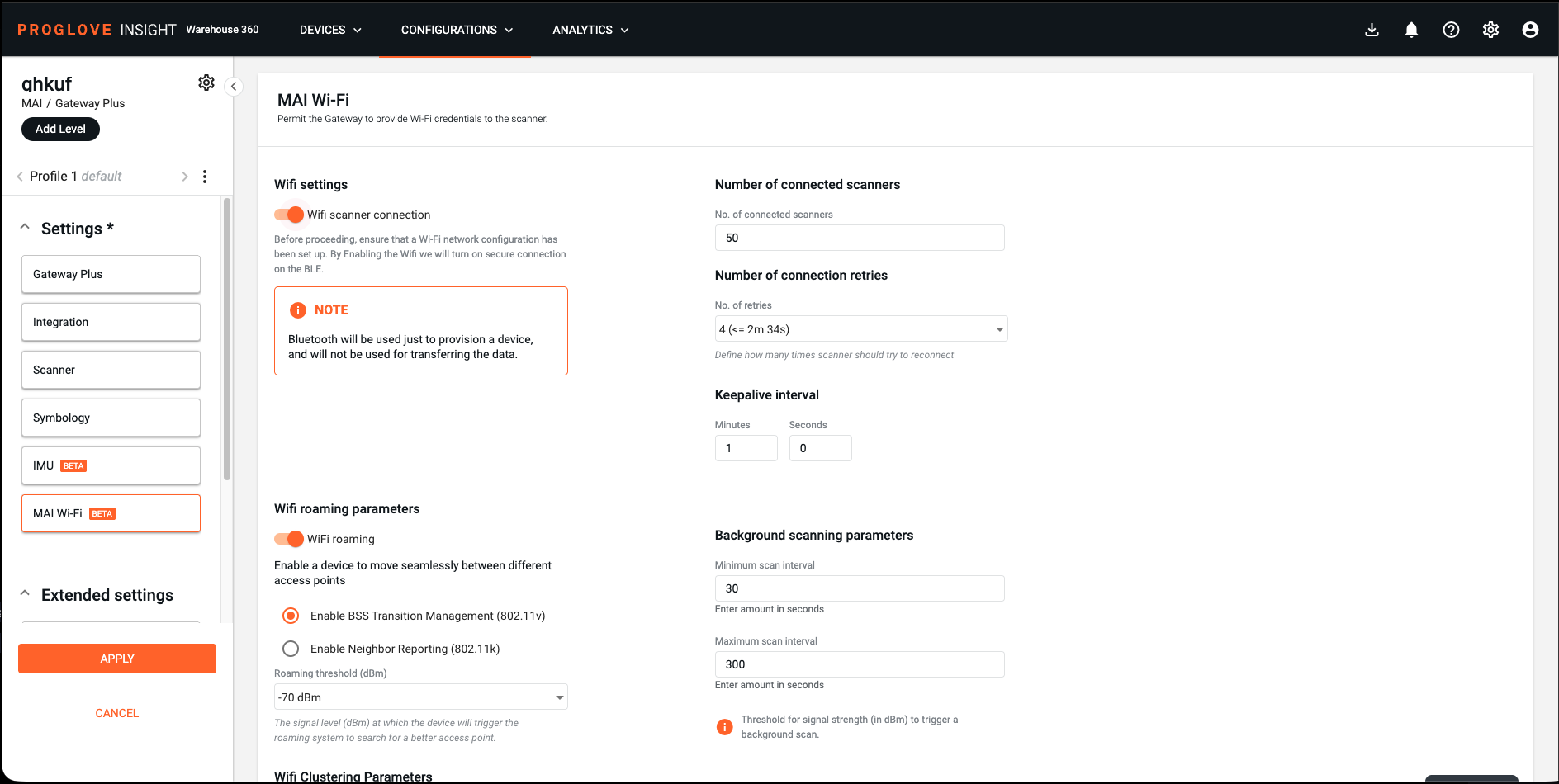
Default settings are sufficient for initial testing. For a detailed explanation of all configuration options, see: MAI Wi-Fi Configuration Fields
Provision Configuration to Gateway Plus
Click Apply to save the device configuration.
Select File Transfer to download the
.proconfigfile.Copy the file to the Gateway Plus mass storage.
Safely eject the device.
Note
Expected result
Gateway Plus LED blinks green once to confirm successful processing.
Pair MAI with Gateway Plus
Scan the pairing QR code using the MAI.
Verify the displayed pairing code matches.
Confirm on the MAI device.
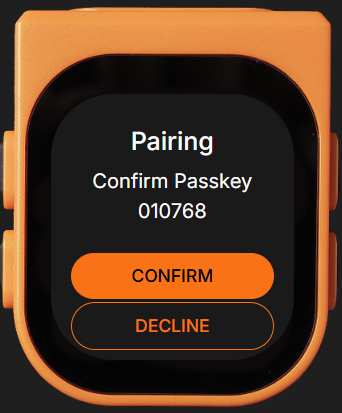
Note
Expected result
Secure BLE connection is established.
Connect MAI to Wi-Fi
After BLE pairing:
MAI starts Wi-Fi connection automatically.
Device searches for configured network.
BLE disconnects once Wi-Fi is established.
Note
Expected device behavior
“Connecting to Wi-Fi” screen appears on MAI.
Followed by “Bluetooth disconnected”.
Followed by “Connected to Wi-Fi".
Scanner LED cycles and returns to normal operation
Verification
To confirm the setup:
Scan a barcode.
Verify output in your integration.
For HID: open a text editor and perform a scan.