Update firmware manually
Prerequisite: firmware image file downloaded from to your desktop.
Connect your to your desktop via USB cable.
The boots up in about one minute and LED 1 (USB) glows green.
Scan the Pairing Barcode on your with your scanner.
Your scanner connects to the and the LED 2 (Scanner) glows green.
Scan the barcode below to enable the as a Mass storage device.
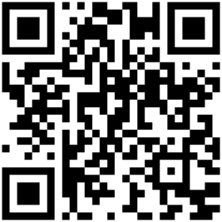
The displays as a mass storage device on your desktop.
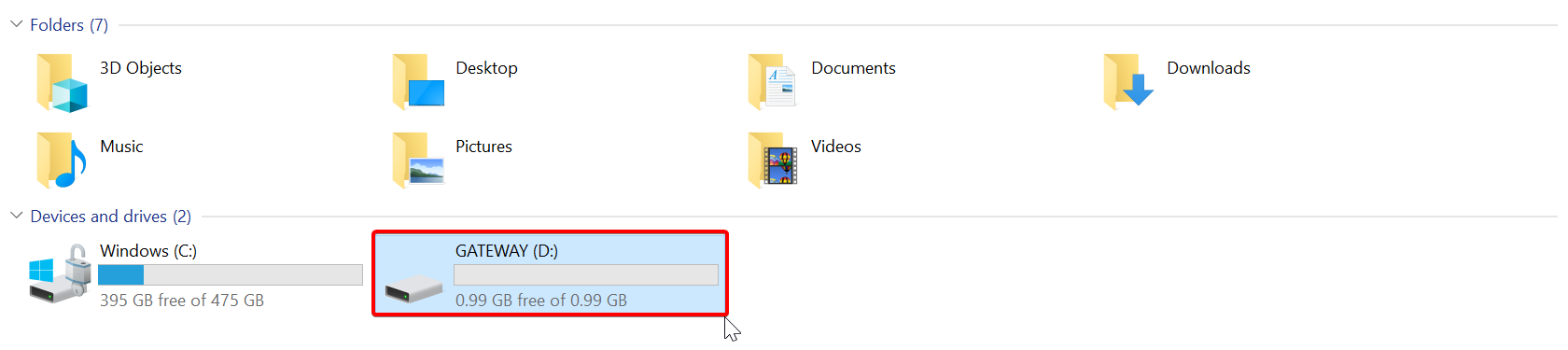
Copy the firmware image file to the mass storage device, next to the Status folder.
Eject the mass storage device.
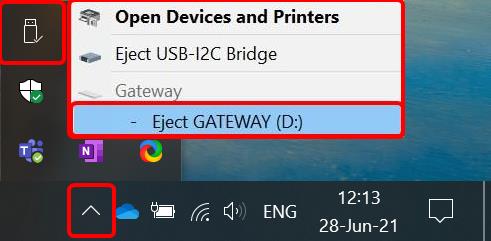
LEDs flash green and purple while the new version installs. The restarts and glows green when done.
Caution
Do not disconnect the cable from desktop during the update. The configuration update takes a couple of minutes.
Note
During the reboot, the might not display any LED feedback for a few seconds.
Update firmware manually on Linux
Prerequisite: firmware image file downloaded from to your desktop.
Connect your to your desktop via USB cable.
The boots up in about 1 minute and its USB LED glows green.
Scan the Pairing Barcode on your with your scanner.
Your scanner connects to the and the Scanner LED glows green.
Scan the barcode below to enable the as a mass storage device.
The displays as a mass storage device output of the
lsblkcommand.Example 10. ExampleNAME MAJ:MIN RM SIZE RO TYPE MOUNTPOINT sda 8:0 0 476.9G 0 disk ├─sda1 8:1 0 768M 0 part ├─sda2 ├─ [...] sdb 8:16 1 1G 0 disk
Note
The exact device name may vary on your system. To find it, you can run
lsblkbefore the is connected and note the output. Connect the and runlsblkagain. The only device name that displays when the is connected is the one you must mount.Mount the as a mass storage device:
$ sudo mkdir /mnt/proglove-gateway
$ sudo mount /dev/sdb /mnt/proglove-gateway
Copy the firmware image file to the mass storage device, next to the Status folder:
$ sudo cp ~/Downloads/gateway_1.10.0.proupdate /mnt/proglove-gateway
Eject the mass storage device:
$ sudo eject /dev/sdb
LEDs flash green and purple while the new version installs. The restarts and all LEDs glow green when done.