Alerts for Warehouse 360
For customers with the Warehouse 360 solution enabled, the INSIGHT webportal can deliver alert notifications whenever a process conformance issue is detected. Typical examples include scanning an unexpected item or performing a scan that is not part of the defined process.
Alerts help users quickly identify and investigate process deviations directly in the INSIGHT.
Setting Up Alerts
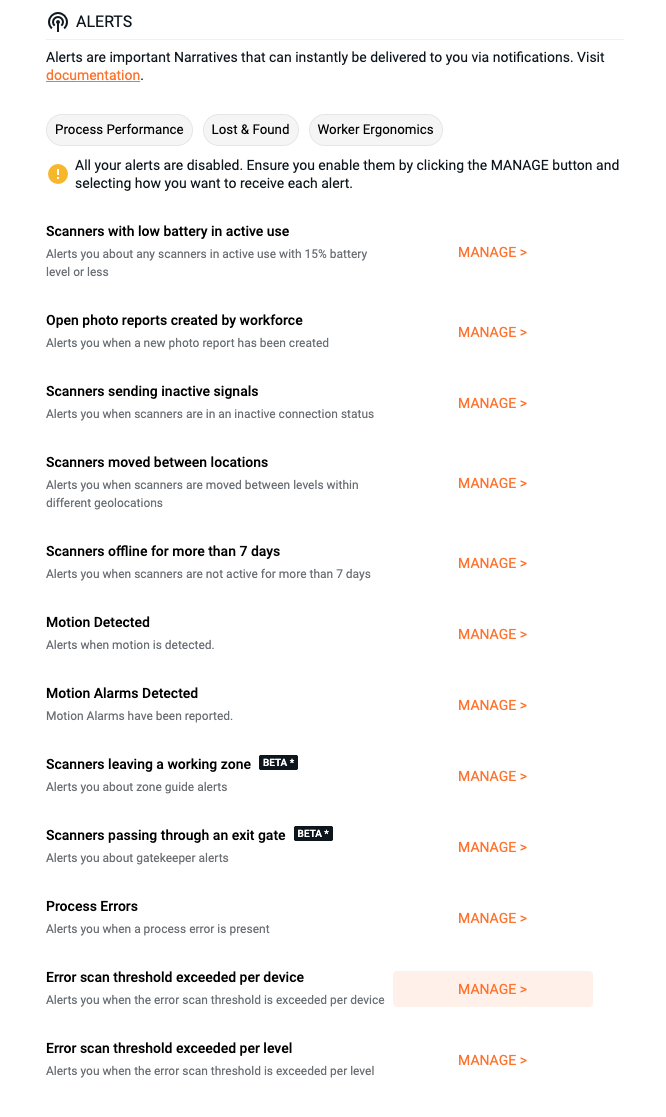
From the main menu, click the notification bell icon to open the notification panel.
Click Notification Settings.
Toggle Notifications to ON.
Locate the Warehouse 360 alert you want to enable.
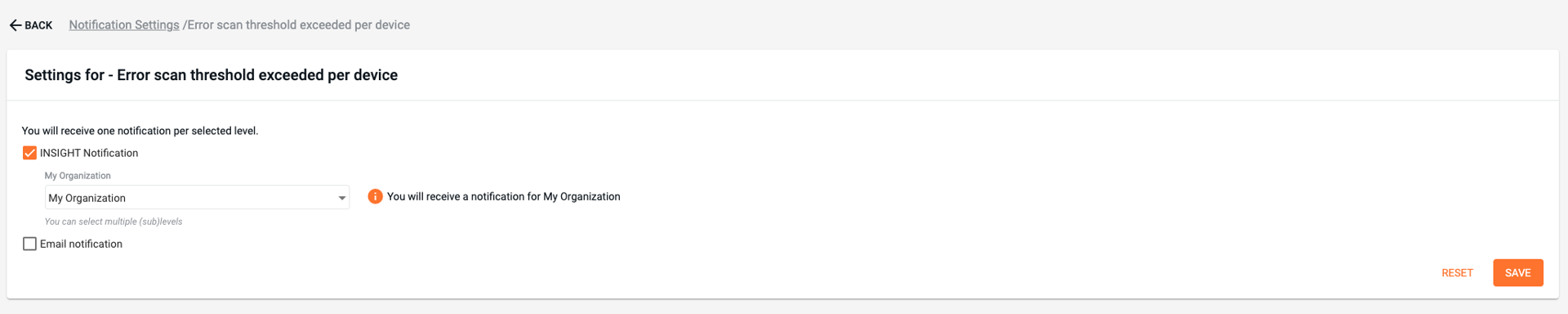
Click Manage next to the alert.
Enable the notification and select the alert levels you want to receive.
Click Save to apply the changes.
Available Notification Options
For each Warehouse 360 alert, the following notification channels can be enabled:
INSIGHT Webportal notifications
Email notifications
Each channel can be configured independently.
Alerts and Notifications in the INSIGHT Webportal
When Warehouse 360 detects a conformance issue:
A notification badge appears on the notification bell icon.
Clicking the bell opens the notification panel, showing the alert details.
Clicking on an alert redirects you to the alert detail view, where the specific error and context are displayed.
Alerts provide direct visibility into what went wrong in the process and allow quick investigation from INSIGHT.