Roles and permissions Warehouse 360
Roles and Permissions for Warehouse 360 extend the standard Roles and Permissions functionality of the INSIGHT Webportal. They allow you to define and control user access to Warehouse 360 features according to your organization’s security and operational requirements.
Using this mechanism, access to Warehouse 360 functionality—such as warehouse layout, activity views, and KPIs—can be restricted based on the role assigned to each user.
Creating a Custom Role for Warehouse 360
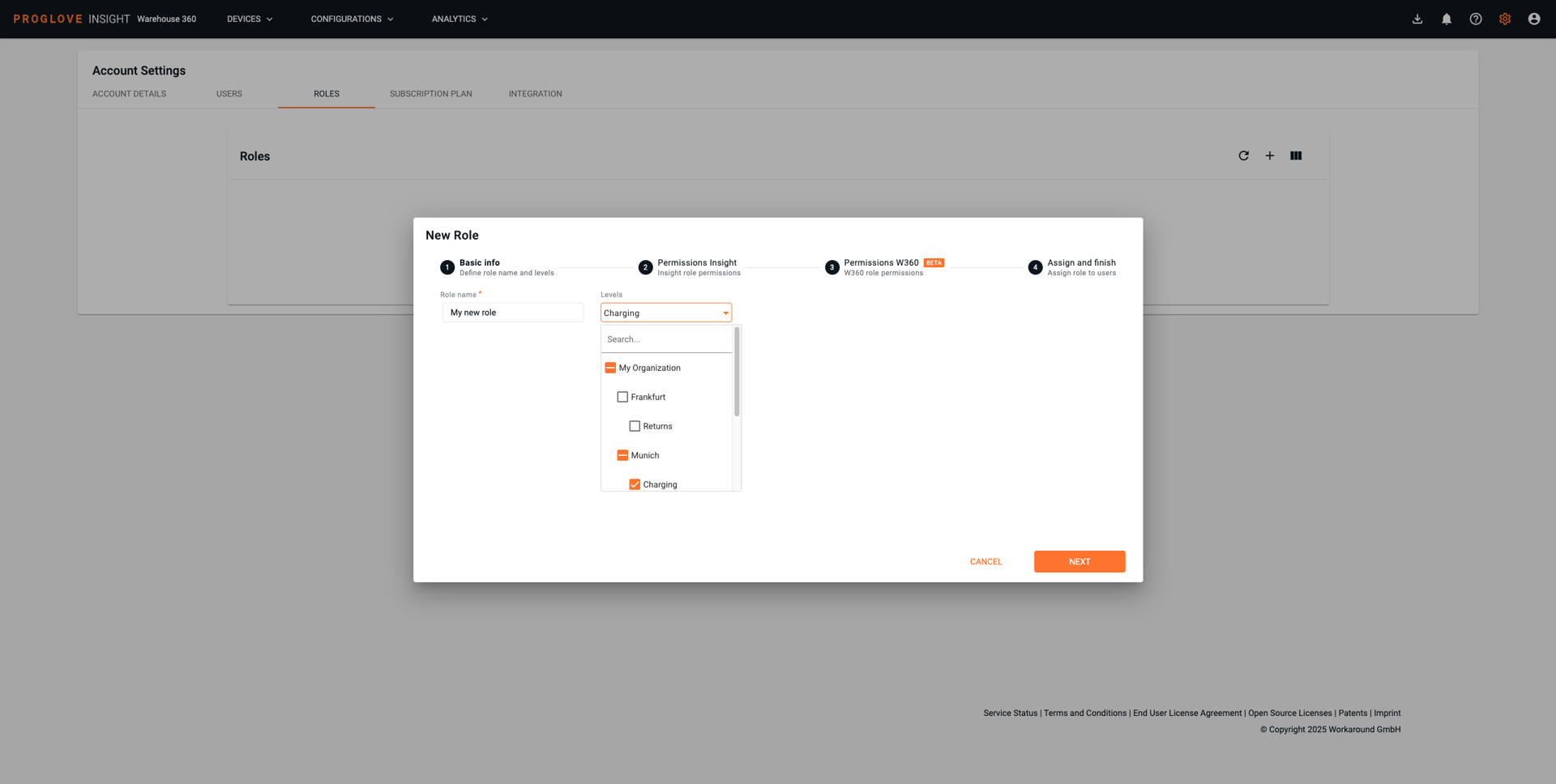
Open Account Settings and navigate to the Roles tab.
Click the “+” icon in the top-right corner to create a new role.
Enter a role name.
Select the levels and sublevels to which the role should apply, then click Next.
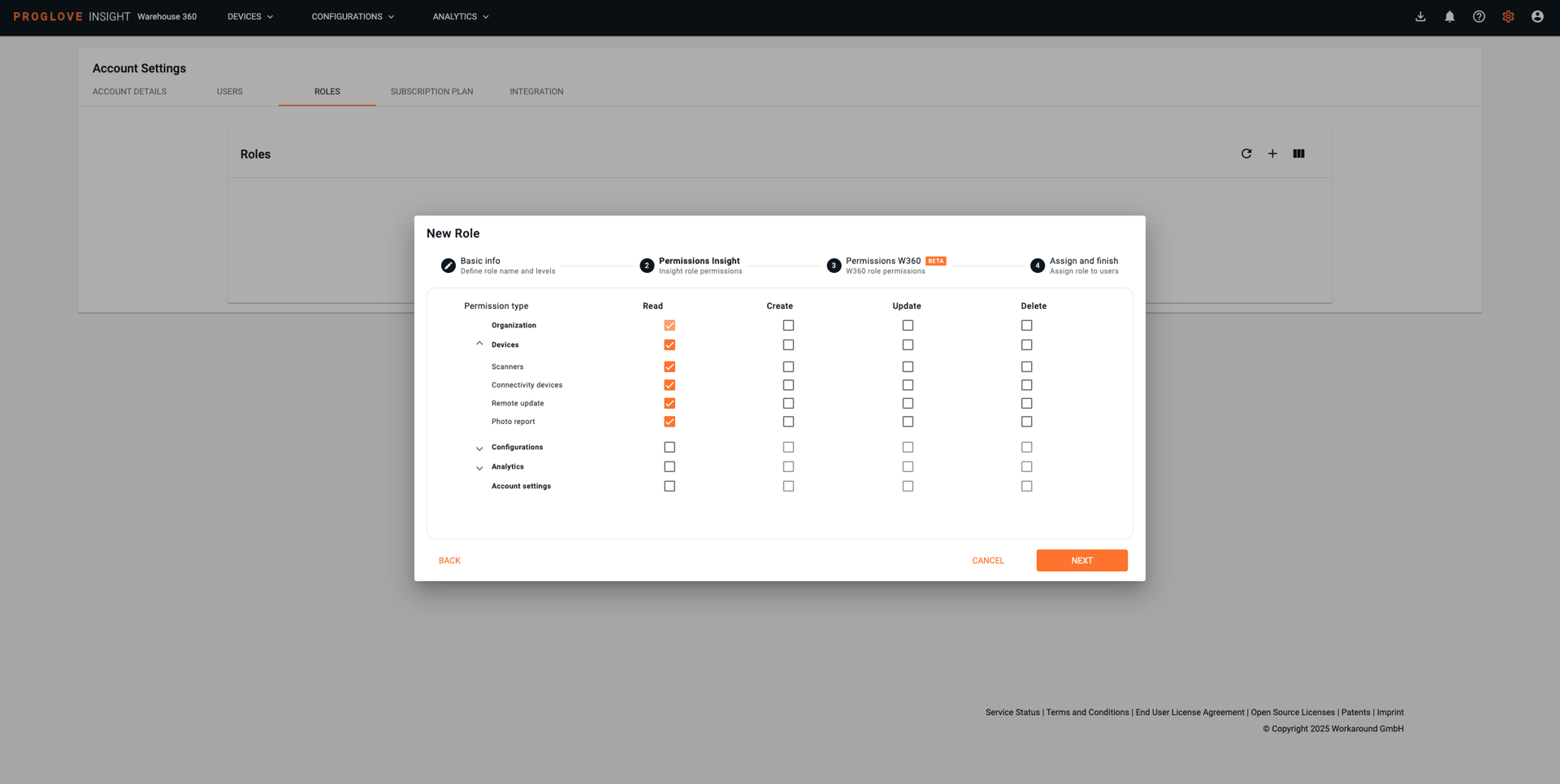
In the permissions matrix, select Read, Create, Update, and/or Delete permissions for the relevant INSIGHT sections (for example: Devices, Configurations, Analytics).
Click Next to continue.
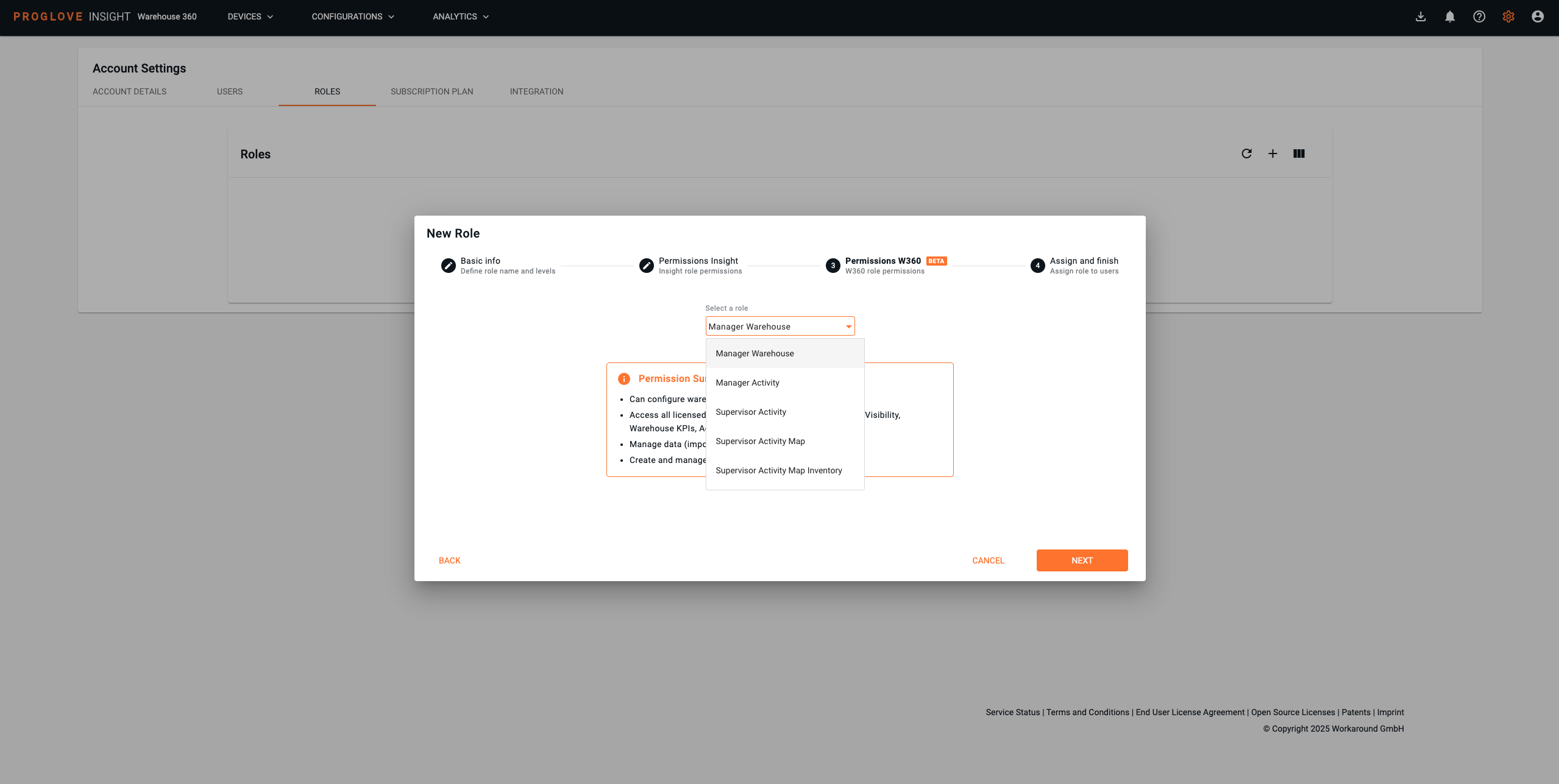
Select one of the available Warehouse 360 roles from the drop-down list.
You can view the permission details of each role before confirming your selection.
Click Next.
Select one or more users to assign the role.
Alternatively, you can save the role without assigning users and assign it later.
Click Save to create the role.
Use Back to modify previous steps or Cancel to discard the role creation.
Important
Important Notes
Only one Warehouse 360 role can be assigned per custom role.
The selected Warehouse 360 role applies to all warehouses associated with the levels defined in the custom role.
General custom role rules and limitations apply as described in INSIGHT Account Settings.
Available Warehouse 360 Roles
The following table summarizes the available roles and their permissions.
Role for Warehouse 360 | Permission summary |
|---|---|
Manager Warehouse |
|
Manager Activity |
|
Supervisor Activity |
|
Supervisor Activity Map |
|
Supervisor Activity Map Inventory |
|
Managing Roles
Managing, editing, or deleting Warehouse 360 roles follows the same principles as managing standard INSIGHT custom roles. For more information, refer to the INSIGHT Account Settings documentation.