Service Status
The Service Status feature in INSIGHT Control gives you visibility into the service coverage of your ProGlove scanners and lets you take action directly from the platform.
From the Service Coverage tab on any scanner, you can:
View service level details (tier, start date, end date)
Extend your scanner SLA before it expires
Request a scanner return (RMA)
Important
Important: The Returned status does not automatically update your device count in INSIGHT. If you want to keep your portal accurate, you will need to manually delete the device from INSIGHT after it shows as Returned.
From the Narratives under Analytics/Narratives (Insight Enhance), you can:
Note
Note: Service data displayed in INSIGHT is sourced from SAP and may not always reflect your exact contract terms. If you believe there is an inaccuracy, contact us at support@proglove.com or via the support form in INSIGHT.
Monitor expiring devices via the SLA Expiration Notice report
Service Level Overview
The Scanners table in INSIGHT Control shows the Service level column for every device in your fleet. This gives you an at-a-glance view of coverage status across all scanners.
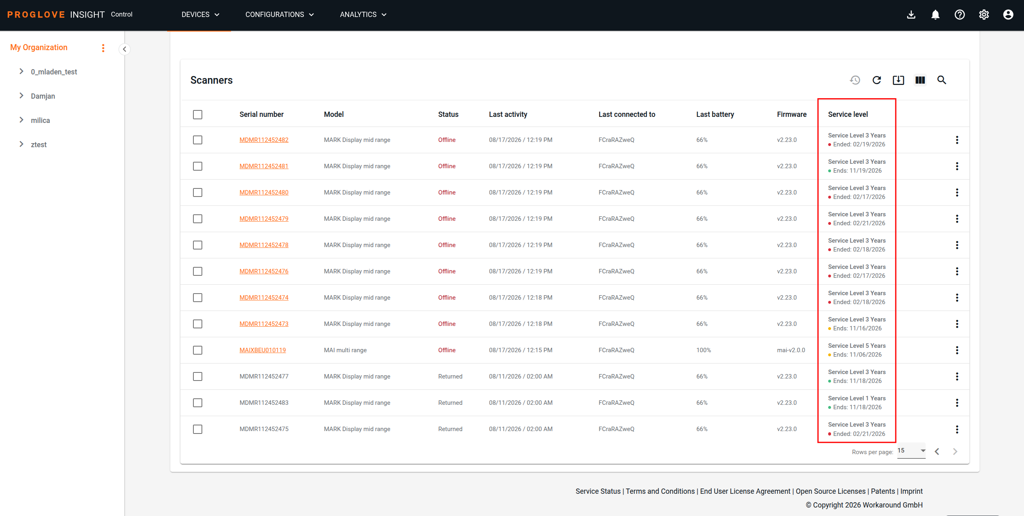
The Service level column displays the following information:
Status indicator | Description |
|---|---|
● GREEN DOT | Service level is active — coverage end date is more than 90 days away |
● ORANGE DOT | Service level is expiring — coverage end date is within 90 days |
● RED DOT | Service level has expired — coverage end date has passed |
Service Level 1 Year | Device does not have ProGlove Care (PG Care) — only standard warranty applies |
Greyed out / inactive | Device has been returned to ProGlove (RMA) — row is greyed out and not clickable |
Click on a scanner serial number to open the scanner details page, then select the Service Coverage tab to see full service level information for that device.
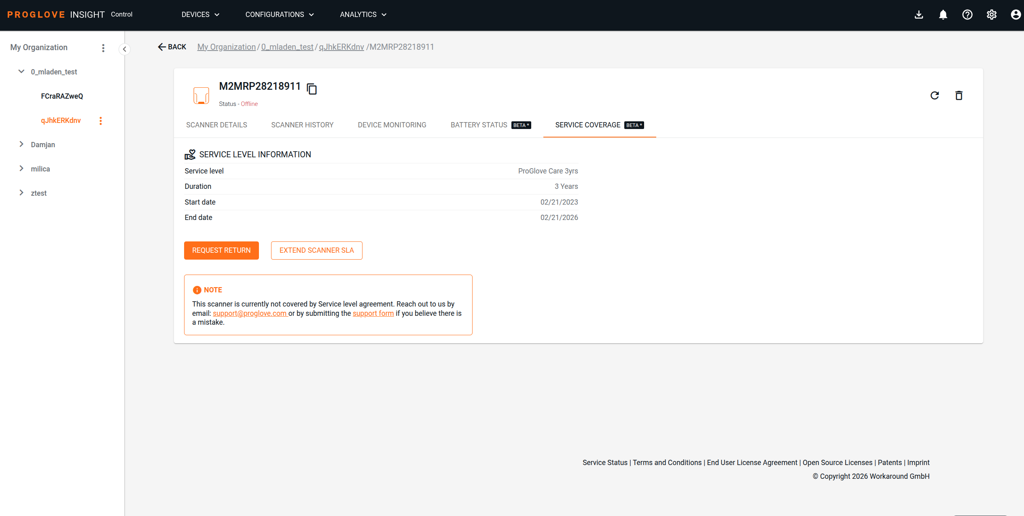
Extend Scanner SLA
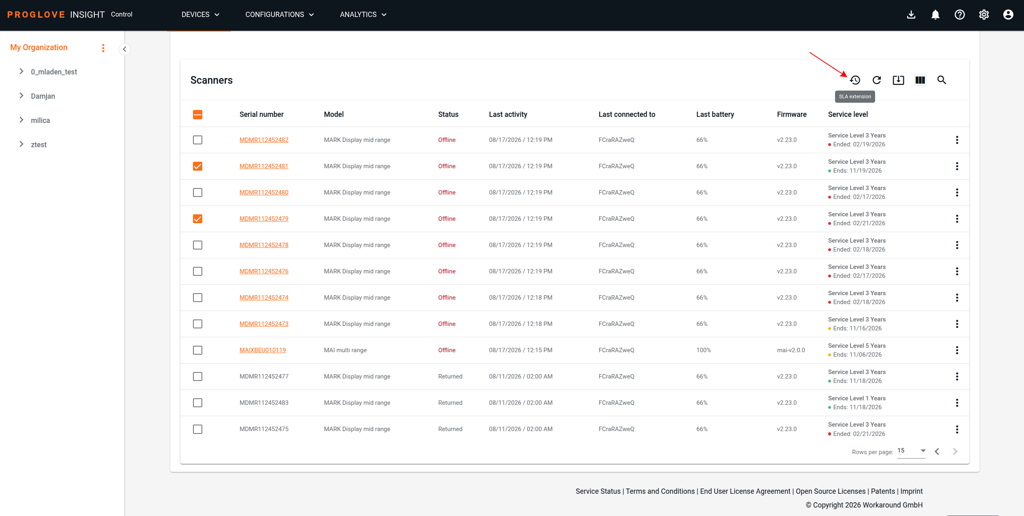
You can submit an SLA extension request directly from INSIGHT when a scanner is approaching its service coverage end date. ProGlove will follow up to help you extend coverage for all eligible devices.
Note
Note: You can only extend the SLA for scanners that have a 3-year service level agreement, and no active RMA return request.
Note
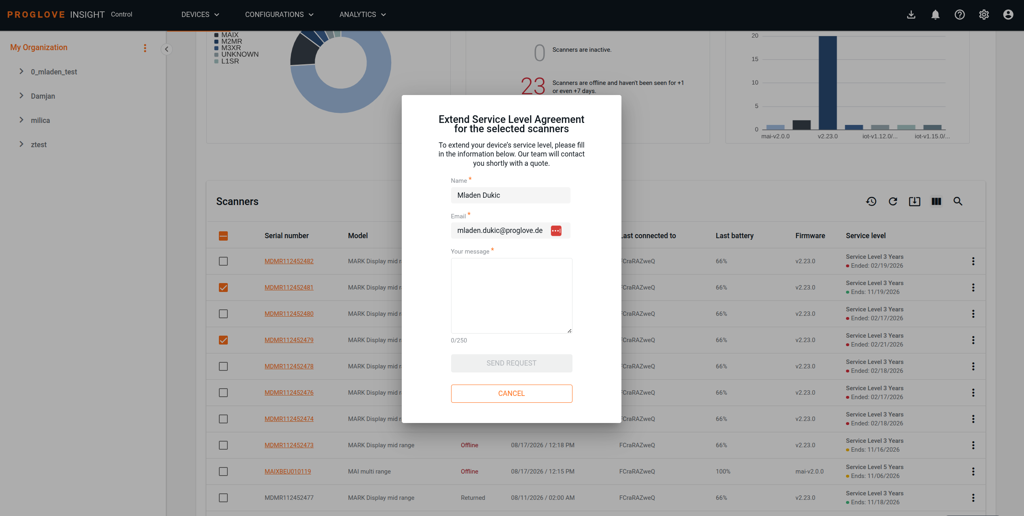
Note: The SEND REQUEST button remains disabled until a message has been entered. You can click CANCEL at any time to close the form without submitting.
After submitting, the ProGlove team will reach out to discuss your renewal options. No automatic renewal is processed — this request initiates a conversation.
Go to INSIGHT → Devices.
In the scanner table, select one or more scanners whose SLA you want to extend by checking the checkbox next to their serial numbers. Only scanners with a 3-year SLA and no active RMA return are eligible.
Click the Service Coverage Renewal icon (⏱) in the top-right toolbar. The SLA extension form opens.
The form is pre-filled with your account name and email address.
Enter a message in the Your message field (required, maximum 250 characters).
Click SEND REQUEST to submit.
Request Return (RMA)
If a scanner has a defect and the issue persists after a hard reset, you can initiate a return request (RMA) in two ways:
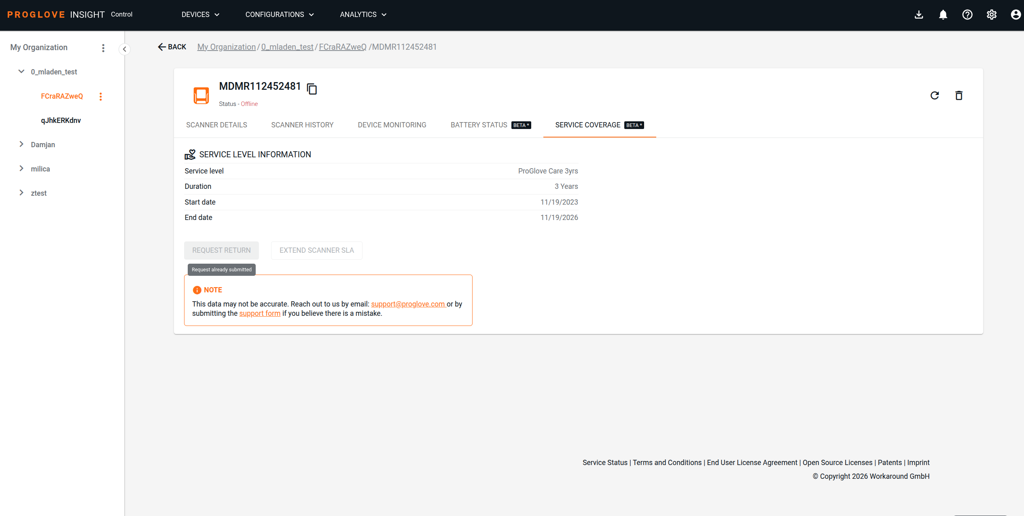
From the scanner's Service Coverage tab
From the three-dot menu (⋮) in the scanner table
Go to INSIGHT → Devices.
In the scanner table, click on the serial number of the scanner you want to return.
Select the Service Coverage tab.
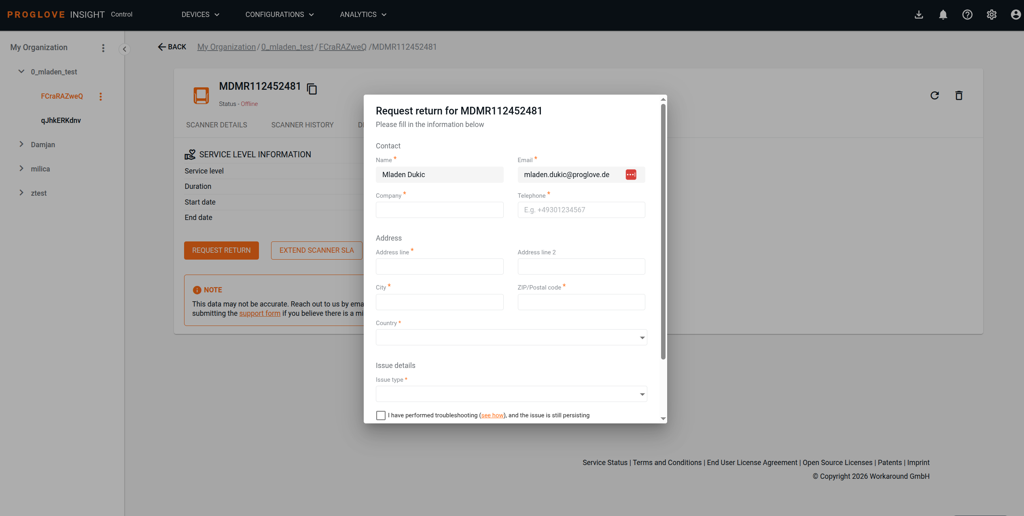
Click REQUEST RETURN. The return request form opens.
The form is pre-filled with your account contact name and email. Complete the required fields:
Company
Telephone
Address (line 1, city, ZIP/postal code, country)
Issue type (select from dropdown)
Check the confirmation box: "I have performed a hard reset and the issue is still persisting." Click see how if you need guidance on performing a hard reset.
Click SUBMIT to send the return request.
Note
Note: Once an RMA return is submitted, both the REQUEST RETURN and EXTEND SCANNER SLA buttons on the Service Coverage tab become disabled. The scanner row in the Scanners table will appear greyed out once ProGlove confirms the return in SAP.
Go to INSIGHT → Devices.
In the scanner table, click the three-dot menu (⋮) at the end of the row for the scanner you want to return.
Select Request Return from the menu. The return request form opens.
Complete and submit the form as described above.
SLA Expiration Report
Note
Note: The SLA Expiration Report is available exclusively to customers on the INSIGHT Enhance plan. If you do not see this report in your Narratives, contact your ProGlove representative to learn more about upgrading your subscription.
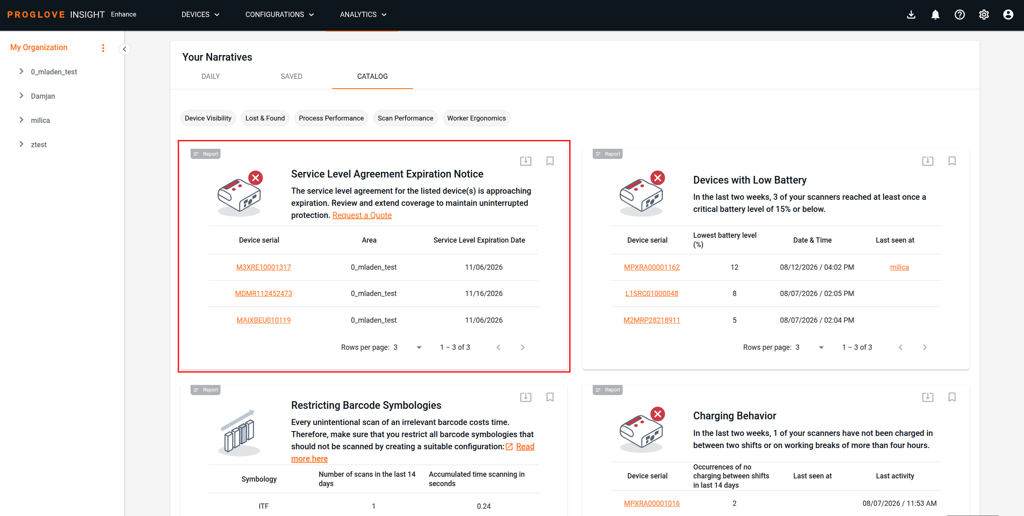
The Service Level Agreement Expiration Notice is a narrative report in INSIGHT that identifies which scanners have coverage expiring soon. Use it to proactively manage renewals before devices lose their service level.
Go to INSIGHT → Narratives.
Select the CATALOG tab.
Open the Service Level Agreement Expiration Notice report.
The report lists all devices with an approaching coverage end date, including serial number, area, and expiration date.
Click Request a Quote directly in the report to be redirected to the SLA extension workflow.
Tip
Tip: Review the SLA Expiration Notice report regularly — especially before quarter-end or before planned deployments — to ensure your devices maintain uninterrupted service coverage.