Introduction
is designed to support operational control by ensuring remain within designated areas and are returned to their Charging Stations at the end of a shift or task. By triggering customizable alerts—such as sound or vibration—when a scanner passes a defined Gatekeeper, the feature helps reinforce best practices and reduce device misplacement. is ideal for environments where maintaining the flow of devices and adherence to processes is critical. It creates a seamless reminder mechanism that encourages proper scanner handling—without requiring manual intervention.
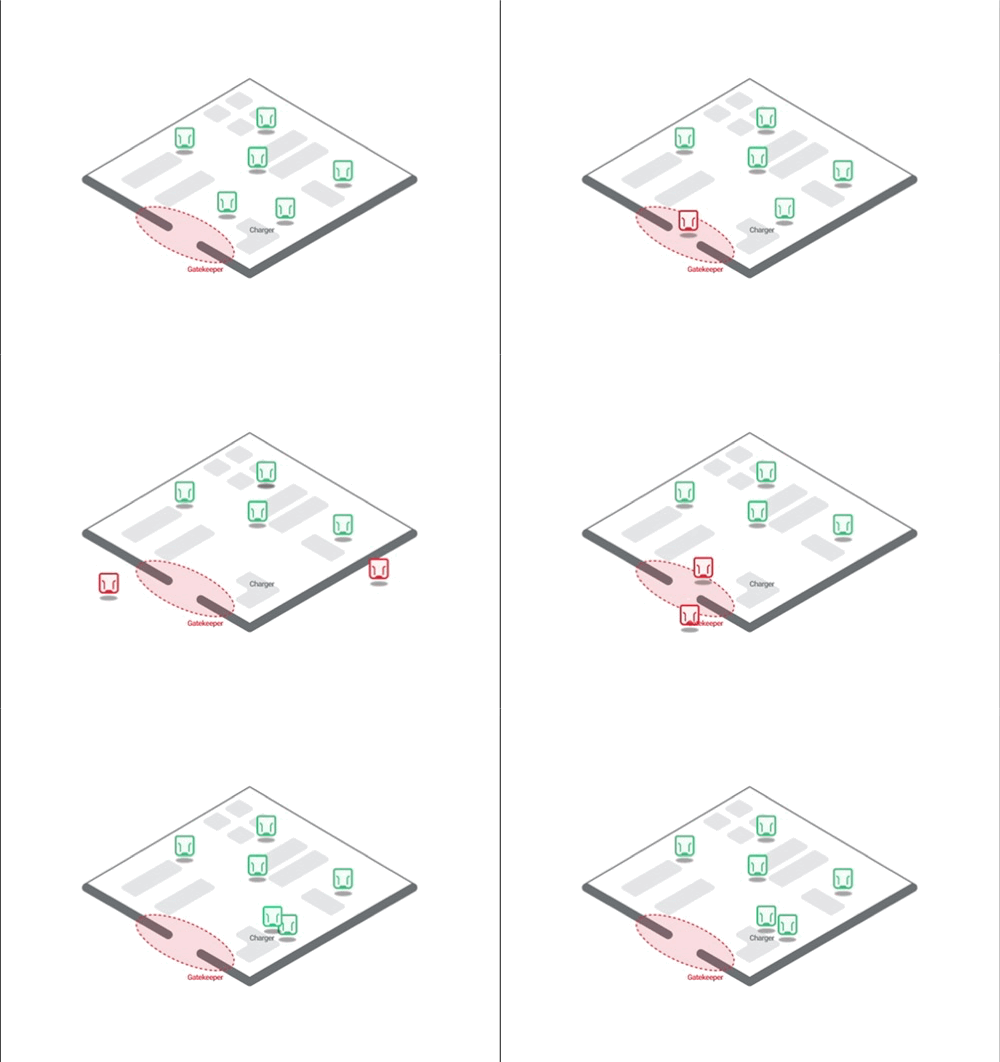
Setup
Follow the instructions below in order to setup the .
Configure the or to act as a .
Configure the to respond to the Gatekeeper.
Caution
To apply the scanner configuration, we recommend using a separate Connectivity Device. If using the same Connectivity Device, configure the scanner first, then apply the setup.
Configure the Connectivity Device as a Gatekeeper
Create a configuration for the or and give the configuration a meaningful name.
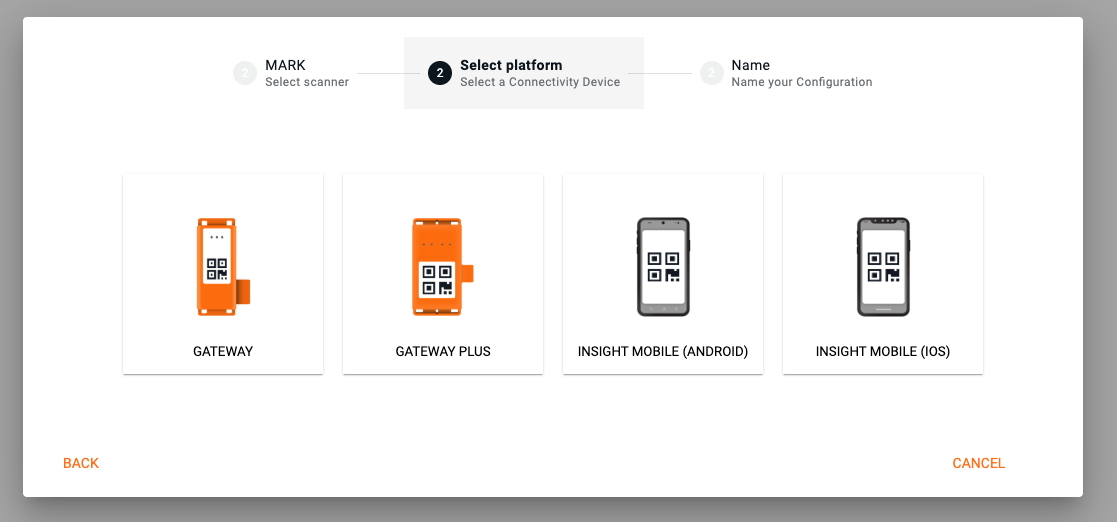
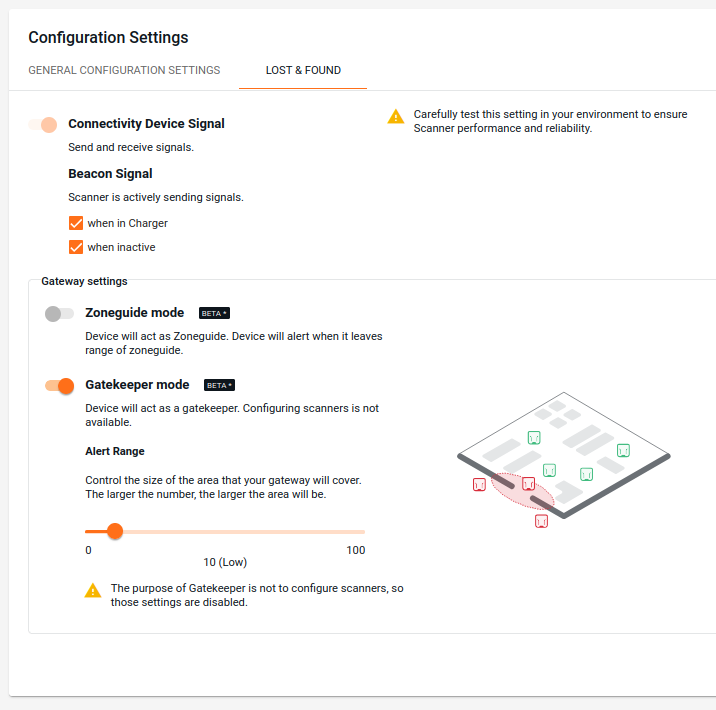
Click on the Gear icon and choose the tab.

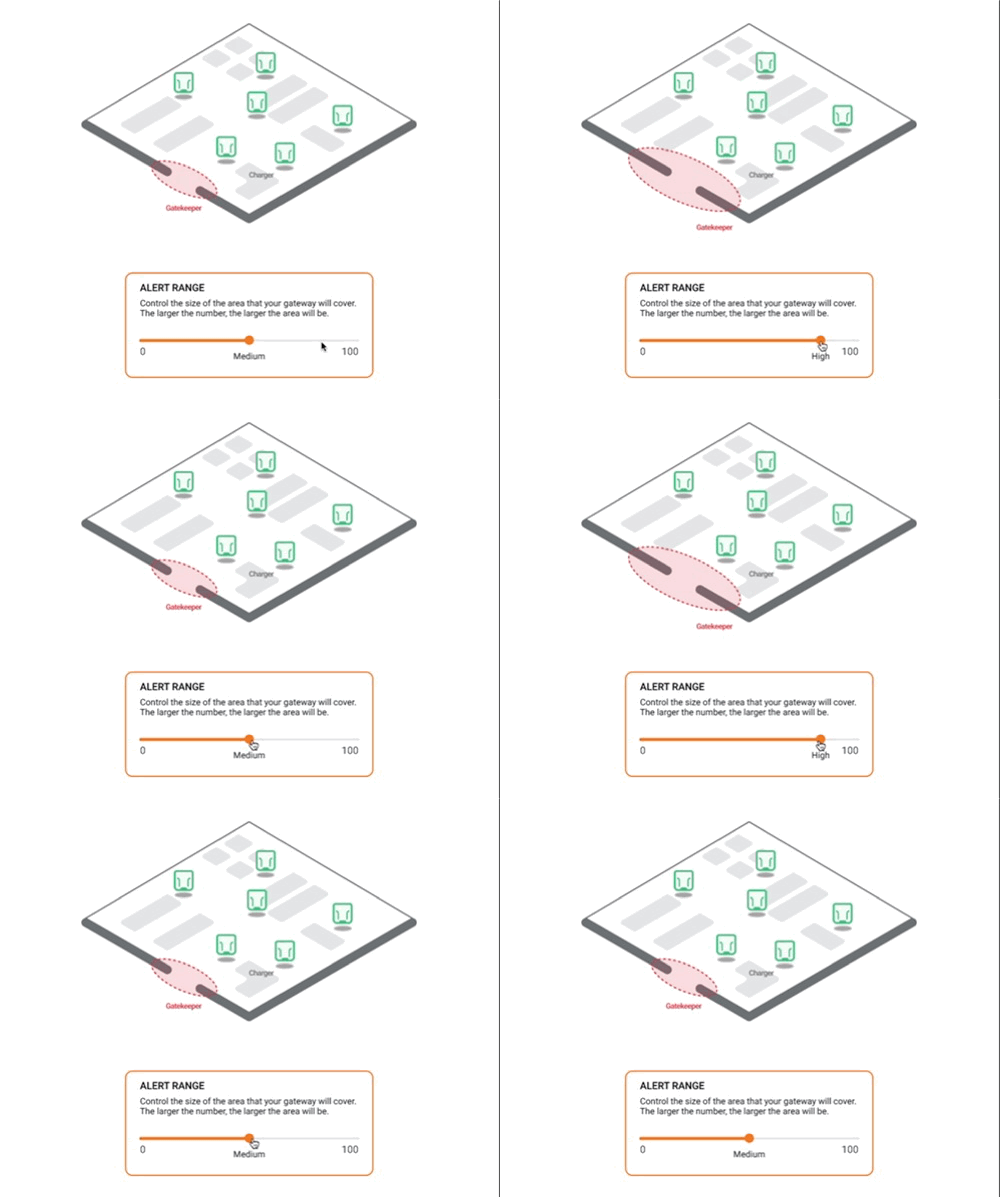
Enable the mode and adjust the Alert range. The alert range setting determines how close a must be to the before the alert is triggered.
Note
Low: Alerts are triggered when the scanner is in close proximity to the
High: Alerts are triggered even when the scanner is at a greater distance from the
Because environmental factors (e.g., layout, interference) can affect performance, we recommend determining the optimal alert range through on-site testing. During testing, make sure to reset the device by placing it back into the charger while it is well out of range of the Gatekeeper device. This ensures accurate measurement of the alert behavior under real-world conditions.
Save and upload the configuration to the connectivity device.
Warning
When a connectivity device ( or ) is set to mode, it no longer functions as a standard connectivity device. This means it cannot:
Push configurations to
Act as a Connectivity Device and transfer data from the to the or perform any regular Connectivity Device functions
Configure the Scanner to listen to the Gatekeeper beacons
Create a configuration for any type of Connectivity Device and give it a meaningful name.
Click on the Gear icon and choose the tab.
Enable the alert and adjust the alert settings.
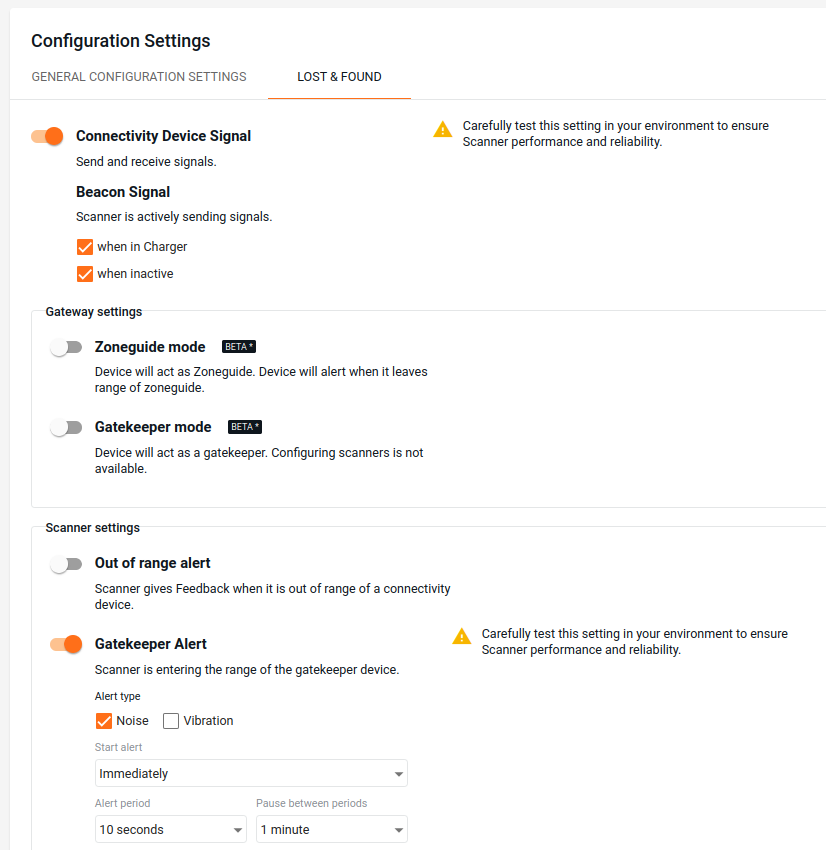
Alert types
Noise: emits a loud beeping sound.
Vibration: Activates the s vibration engine.
Alter timing
Start alert: Choose whether the alert begins immediately or after a delay.
Alert duration and interval: Set the duration for ho the alert should play and define the pause period between repeated alert cycles.
Note
Once the alert is triggered, the feedback is played continuously until the device is put into a Charging Station.
Save and upload the configuration to the connectivity device.
Additional Information
Tip
Using the Gateway Plus will result in faster response times and hence is recommended.
Devices and firmware | Subscription plan | Lifecycle status | Resources |
|---|---|---|---|
, , - 2.20.0 , - 1.12.0 - 1.0.2 - 2.16.1 | , |