Advanced Scanning
Use Advanced Scanning settings to enable capturing of multiple expected barcodes on the same surface with the single trigger press.
Multiscan
Multiscan assists with managing items with multiple barcodes, by allowing selective scanning and sequencing before sending the data back to the system. It allows our customers to scan multiple barcodes at the same time, with real-time conditional rules execution on top of the scanned barcodes.
Multiscan enables your workforce to do less scans, hence being more ergonomic and more efficient, but also to ensure process quality with only processing the right barcodes and items needed. Define a list of rules that must be satisfied in order for the scan session to succeed and the output to be sent to the selected integration. Each rule corresponds to a barcode to be scanned depending on conditions (data equals, length matching, etc.).
Workers on the shop floor will be able to scan all barcodes on a label without thinking which one comes first, second, etc. and save a significant amount of time. At the same time, processing receives all the barcodes for validation, which come in a predefined order, so errors are minimized.
Create a new or edit an existing device configuration, open the Advanced Scanning settings and click the toggle in the top-right to enable it.
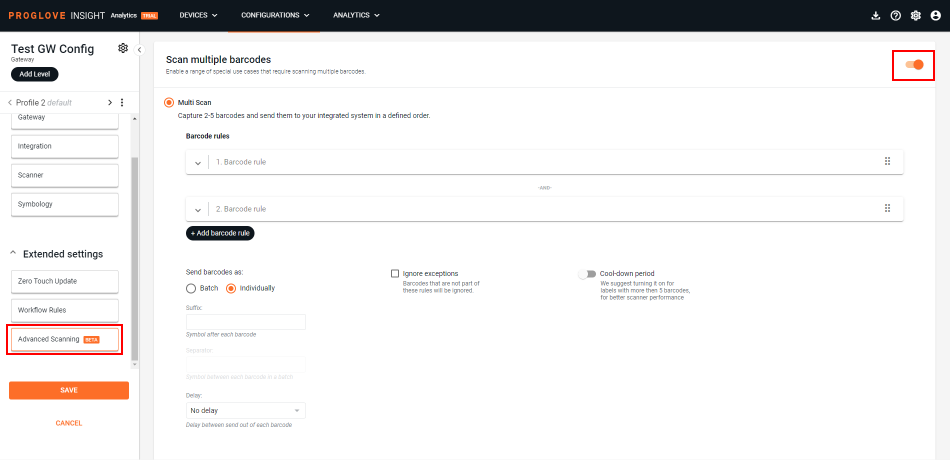
Setup
Define at least 2 and a maximum of 5 rules to serve as conditions for scanning only the required barcodes, and then forward them in the correct order to the selected integration. You can add a maximum of 3 condition groups, and they include the barcode length, barcode content and barcode symbology.
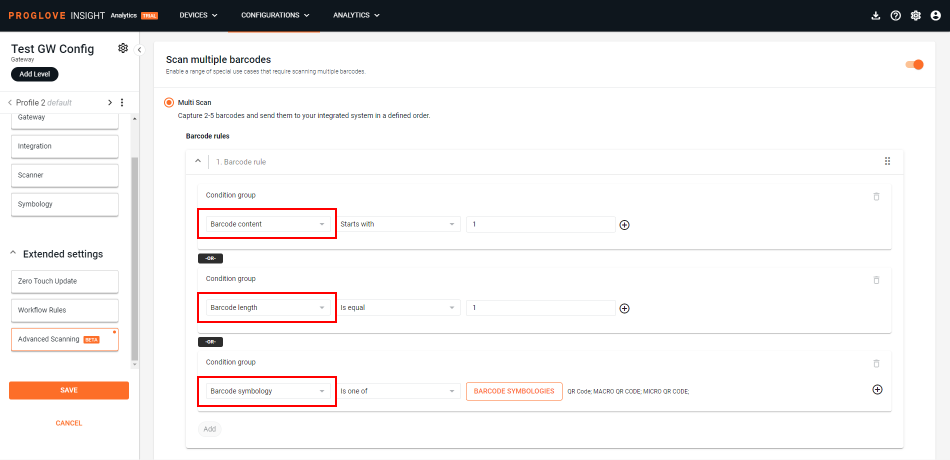
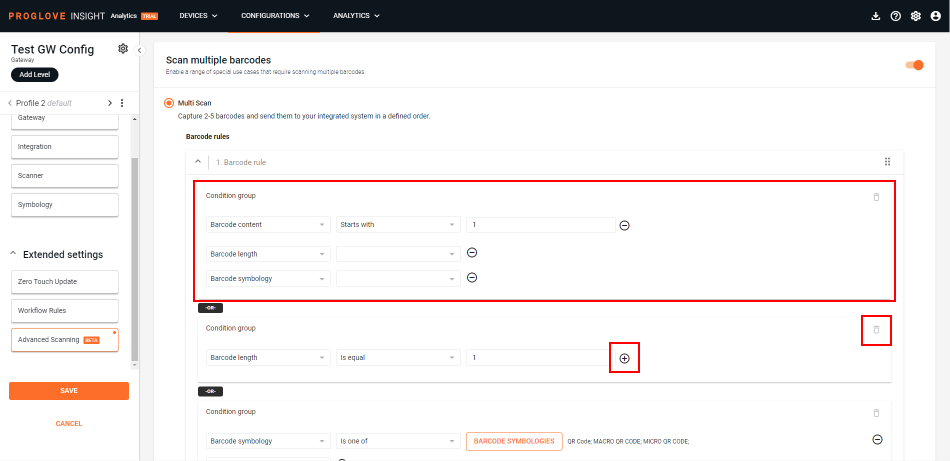
Each of the condition groups can have up to 3 conditions, in order to satisfy the order and filter to the necessary barcodes only. To delete any condition groups you no longer need, click the trash can icon to the right. For adding or removing conditions within the group, click the + or - icons.
Once your condition groups are defined, set up how you want the barcode data to be recorded and forwarded. The data can be batched or sent individually. If batched, INSIGHT can transform the barcodes by adding a suffix, as well as separate them by inserting certain symbols (separators) between the captured barcodes.
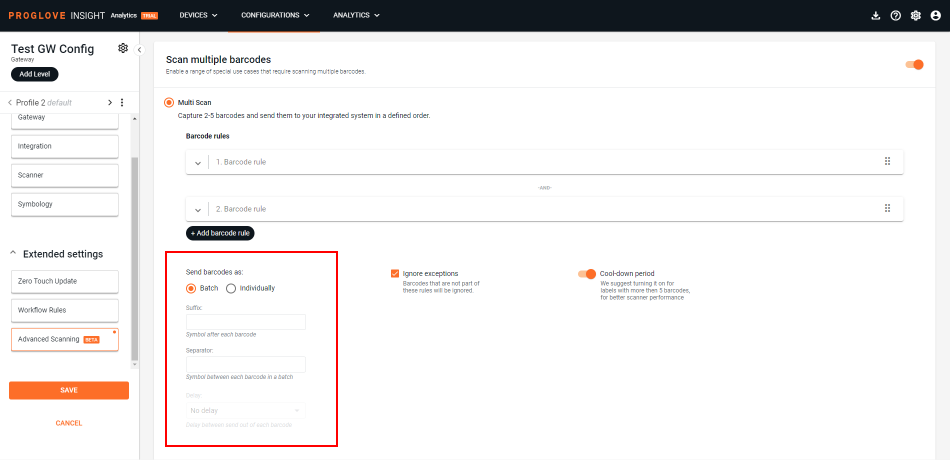
If you want the data sent individually, you can choose to add a suffix after each barcode and/or add a delay time of up to 10 seconds between each barcode is sent.
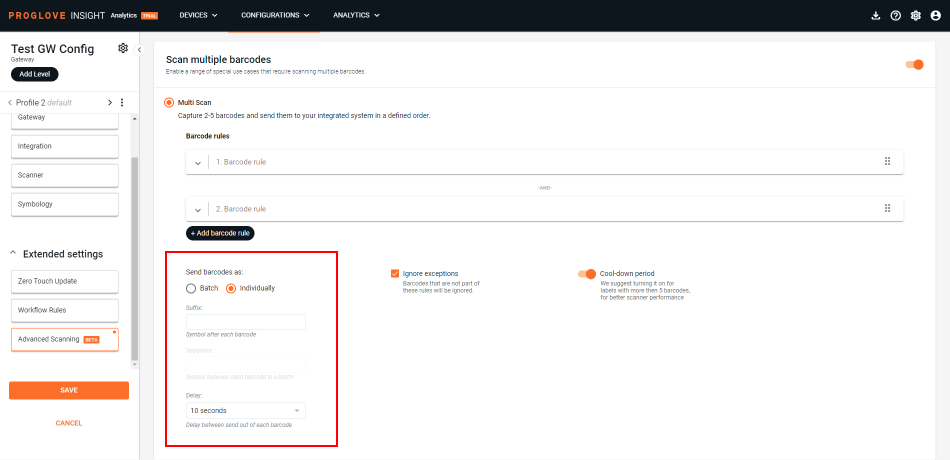
Additionally, you can choose to Ignore exceptions to the defined rules, and activate a Cool-down period for your scanner to further support and fine-tune your process.
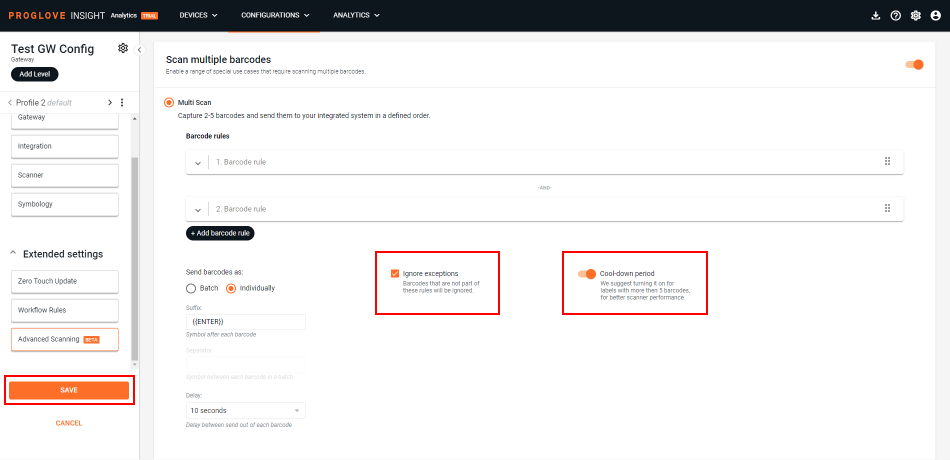
Once all settings are defined, click SAVE in the bottom of the left navigation and your configuration will display in the Configurations list.
Additional information
Devices | Subscription plan | Lifecycle status | Resources |
|---|---|---|---|
MARK Basic, MARK Display, MARK 2 - Scanner Firmware Gen1 2.13.0 LEO, MARK 3 - Scanner Firmware Gen2 1.5.0 Gateway - 2.11.0 INSIGHT Mobile (Android) - 1.31.0 INSIGHT Mobile (iOS) - 2.2.0 | INSIGHT Visibility, INSIGHT Analytics |